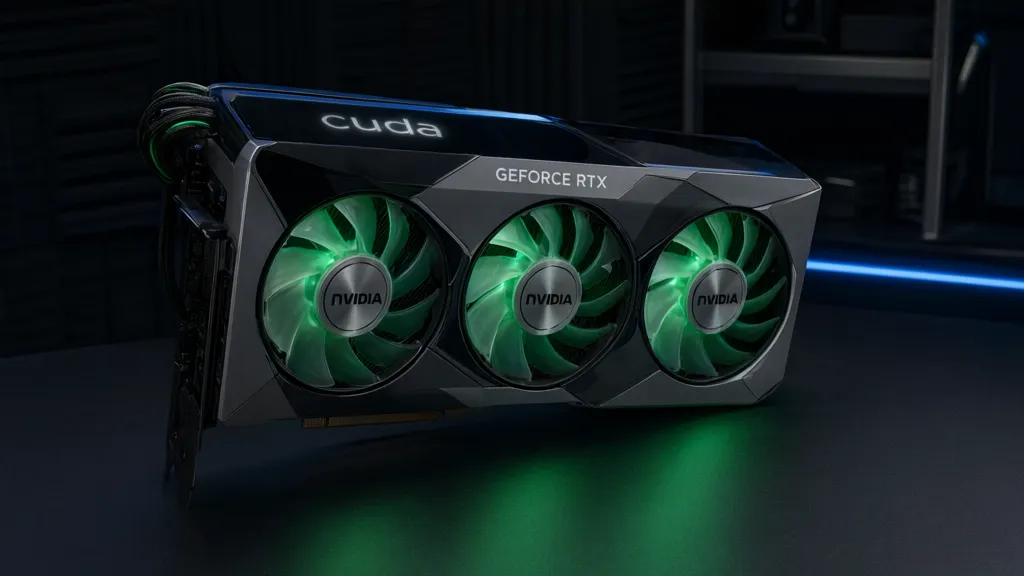
GPU acceleration is a game-changer in the context of high-performance computing, allowing developers to harness the massive parallel processing capabilities of graphics processing units. Unlike CPUs, which have a few cores optimized for sequential serial processing, GPUs contain hundreds or thousands of smaller cores designed for handling multiple tasks simultaneously. This makes them particularly well-suited for workloads that can be executed in parallel, such as matrix multiplications and large-scale data processing.
One of the key concepts to grasp is how data is transferred between the CPU and GPU. The GPU has its own memory, known as VRAM, which is separate from the system RAM. When working with libraries like PyTorch, you need to manage these data transfers explicitly. This involves moving your tensors to the GPU memory before performing computations, and then back to the CPU memory afterward when needed.
import torch

# Check if GPU is available
device = torch.device("cuda" if torch.cuda.is_available() else "cpu")

# Create a tensor and move it to the GPU
x = torch.randn(3, 3).to(device)
y = torch.randn(3, 3).to(device)

# Perform a matrix multiplication on the GPU
result = torch.mm(x, y)
Understanding your workload is essential when using GPU acceleration. Not all tasks will benefit from being run on a GPU. For instance, if your computations are inherently sequential or your dataset is small, the overhead of transferring data to and from the GPU can outweigh the performance gains. It’s crucial to identify bottlenecks in your code and determine where parallel processing can provide significant improvements.
Another fundamental aspect to consider is the architecture of the GPU itself. Different models have varying numbers of cores, memory bandwidth, and other specifications that can affect performance. Familiarizing yourself with the specifications of the GPU you’re using can help you tailor your applications to maximize efficiency. For example, NVIDIA’s CUDA architecture allows developers to write programs that can run on their GPUs, and the organization of threads and blocks is vital for optimal performance.
Moreover, GPU programming involves a different mindset than traditional sequential programming. You’ll often be dealing with concepts such as thread blocks and warps, which are critical for organizing your computations. Each thread in a block executes the same instruction at the same time but can work on different pieces of data. This allows for efficient data processing across large datasets.
# Example of launching a kernel in CUDA
__global__ void add(int *a, int *b, int *c) {
    int idx = threadIdx.x;
    c[idx] = a[idx] + b[idx];
}

// Kernel launch
add<<<1, N>>>(d_a, d_b, d_c);

Peslv Magnetic Privacy Screen for Macbook Air 13.6 Inch/13 Inch | (2022-2026, M2-M5 Chips) Only. Removable & Reusable, Matte Anti Glare, Blue Light Filter Eye Protection, Bubble‑Free
$24.28 (as of October 21, 2026 20:09 GMT +00:00 - More infoProduct prices and availability are accurate as of the date/time indicated and are subject to change. Any price and availability information displayed on [relevant Amazon Site(s), as applicable] at the time of purchase will apply to the purchase of this product.)Setting up your environment for torch.cuda
To set up your environment for using torch.cuda, you need to ensure that you have the appropriate NVIDIA drivers installed on your system. This includes the CUDA toolkit, which provides the necessary libraries and tools for GPU programming. You can download the latest version of the CUDA toolkit from the NVIDIA website, and installation instructions are typically provided for various operating systems. Once installed, verify your installation by checking the version of CUDA available.
After setting up the CUDA toolkit, you must install the appropriate version of PyTorch that supports CUDA. PyTorch provides a simple way to install the library with CUDA support using pip or conda. Make sure to select the version that matches your CUDA installation. For example, you can run the following command to install PyTorch with CUDA support:
pip install torch torchvision torchaudio --extra-index-url https://download.pytorch.org/whl/cu113
Once you have PyTorch installed, it’s important to verify that your GPU is recognized by the library. You can check this using the following code snippet:
import torch

# Check if CUDA is available
if torch.cuda.is_available():
    print("CUDA is available. Number of GPUs:", torch.cuda.device_count())
    print("Current GPU:", torch.cuda.get_device_name(torch.cuda.current_device()))
else:
    print("CUDA is not available.")
This code will help you ensure that your environment is correctly configured for GPU usage. If you encounter any issues, make sure your NVIDIA driver is up to date and that your CUDA version is compatible with the installed version of PyTorch.
In addition to verifying the installation, it’s useful to familiarize yourself with the various PyTorch functions that facilitate tensor operations on the GPU. For example, you can create tensors directly on the GPU by specifying the device when creating them:
# Create a tensor directly on the GPU
gpu_tensor = torch.randn(1000, 1000, device='cuda')
This avoids the overhead of transferring data from CPU to GPU after the tensor has been created. Moreover, you can seamlessly move tensors between CPU and GPU using the .to() method, which allows for dynamic switching based on the computational requirements.
# Move a tensor from GPU to CPU
cpu_tensor = gpu_tensor.to('cpu')
As you start working with GPU-accelerated computations, keep in mind the importance of memory management. Each GPU has a limited amount of VRAM, and inefficient memory usage can lead to out-of-memory errors. Use the following commands to monitor and manage your GPU memory:
# Check current memory usage
print(torch.cuda.memory_allocated())
print(torch.cuda.memory_reserved())

# Clear unused memory
torch.cuda.empty_cache()
Understanding how to manage memory effectively will help you avoid common pitfalls in GPU programming. Additionally, be aware of the need for synchronization when working with multiple GPUs or when performing operations that require results from previous computations. You can use:
# Synchronize GPU operations
torch.cuda.synchronize()
This ensures that your GPU computations are completed before moving forward in your code. As you dive deeper into GPU programming with PyTorch, exploring advanced topics like mixed precision training and distributed data parallelism can yield significant performance improvements, but it’s essential to have a solid foundation first.
When it comes to debugging GPU code, be prepared for some unique challenges. Errors may not always be as simpler as those encountered in CPU programming. For instance, kernel launch failures can occur without clear error messages, and you might need to rely on tools like NVIDIA’s Nsight or the command-line utility cuda-gdb to troubleshoot issues. Familiarizing yourself with these tools will make your debugging process more efficient and less frustrating.
Optimizing performance with efficient tensor operations
Optimizing performance with efficient tensor operations especially important when working with GPU acceleration. One of the primary areas to focus on is the use of batched operations, which allow you to perform computations on multiple tensors simultaneously. This can significantly reduce the execution time compared to processing each tensor individually.
For example, instead of multiplying two matrices one at a time, you can create a batch of matrices and multiply them all simultaneously. PyTorch’s torch.bmm function is specifically designed for this purpose, allowing for batch matrix multiplication:
# Batch matrix multiplication
batch_size = 10
x = torch.randn(batch_size, 3, 3, device='cuda')
y = torch.randn(batch_size, 3, 3, device='cuda')
result = torch.bmm(x, y)
Another technique to enhance performance is to leverage in-place operations whenever possible. In-place operations modify the data of a tensor directly rather than creating a new tensor, which can save memory and reduce the overhead of memory allocation. For instance, you can use the add_ method to add values to a tensor in place:
# In-place addition
tensor = torch.randn(3, 3, device='cuda')
tensor.add_(5)  # Adds 5 to each element in the tensor
However, while in-place operations can improve performance, they should be used with caution, especially when dealing with autograd. If a tensor requires gradients, modifying it in place can lead to unexpected behavior and errors during backpropagation. Always check whether the tensor is part of a computation graph before performing in-place modifications.
When optimizing your tensor operations, it’s also important to consider the data types you are using. By default, PyTorch uses 32-bit floating point numbers, but using mixed precision can lead to better performance and lower memory usage. You can use the torch.cuda.amp module for automatic mixed precision training:
# Using automatic mixed precision
from torch.cuda.amp import autocast

with autocast():
    output = model(input_tensor)
    loss = loss_fn(output, target)
This approach allows you to take advantage of Tensor Cores on NVIDIA GPUs, which are optimized for mixed precision calculations, leading to faster training times without sacrificing model accuracy. Nevertheless, it is essential to monitor your model’s performance to ensure that the reduced precision does not adversely affect the results.
Profiling your GPU code is another vital step in optimization. PyTorch provides a built-in profiler that can help you identify bottlenecks in your code. By using the torch.profiler module, you can track the execution time of different operations and gain insights into how to improve your code:
import torch.profiler

with torch.profiler.profile() as prof:
    model(input_tensor)

print(prof.key_averages().table(sort_by="cpu_time_total", row_limit=10))
This profiling tool can highlight which operations are taking the most time and where you should focus your optimization efforts. Moreover, consider using the torch.jit module to compile your models for improved performance. The Just-In-Time (JIT) compiler can optimize your PyTorch code by fusing operations and reducing overhead:
# JIT compilation
@torch.jit.script
def my_function(x):
    return x * 2

# Use the compiled function
result = my_function(tensor)
Another aspect to be mindful of is the layout of your tensors in memory. Contiguous tensors can lead to better performance due to improved cache use. You can ensure that your tensors are contiguous by using the .contiguous() method when necessary:
# Ensure tensor is contiguous
if not tensor.is_contiguous():
    tensor = tensor.contiguous()
Understanding the implications of memory layout and tensor contiguity can provide substantial performance benefits, especially in large-scale computations. As you refine your GPU programming skills, consider experimenting with different optimization techniques and monitoring their impact on performance. This iterative process will help you discover the best strategies for your specific workload.
Lastly, keep in mind the importance of using efficient algorithms that are designed for parallel execution on GPUs. For instance, using specialized libraries such as cuBLAS for linear algebra operations can provide significant speedups compared to naive implementations. Likewise, exploring third-party libraries optimized for GPU usage can also yield better performance for specific tasks, such as image processing or deep learning.
Debugging common issues in GPU programming
Debugging GPU code can be particularly challenging due to the asynchronous nature of GPU operations. When an error occurs, it might not be immediately apparent where the problem lies, especially if the error arises from a kernel launch. You may encounter issues that seem to stem from the CPU code, but are actually the result of previous GPU operations. Understanding that the CPU and GPU operate in parallel is key to effective debugging.
One common issue is the mismatch between tensor sizes during operations. If you attempt to perform operations on tensors of incompatible shapes, PyTorch will throw an error. To prevent this, always verify the dimensions of your tensors before performing operations. You can use the .shape attribute to check the size of your tensors:
# Check tensor shapes
print("Shape of tensor x:", x.shape)
print("Shape of tensor y:", y.shape)
Another frequent source of errors is running out of GPU memory. This can happen if you try to allocate too much memory for your tensors or if you forget to release memory from previous computations. To mitigate this risk, keep an eye on your memory usage. You can use the following commands to monitor memory allocation:
# Monitor GPU memory usage
print("Allocated memory:", torch.cuda.memory_allocated())
print("Reserved memory:", torch.cuda.memory_reserved())
If you encounter out-of-memory errors, consider reducing the batch size or optimizing your model architecture to use less memory. Additionally, using gradient checkpointing can significantly reduce memory consumption during training by saving only a subset of intermediate activations:
# Example of gradient checkpointing
from torch.utils.checkpoint import checkpoint

def custom_forward(*inputs):
    return model(*inputs)

outputs = checkpoint(custom_forward, *inputs)
Moreover, using torch.autograd.set_detect_anomaly(True) can help identify issues with gradients. This will raise an error when there are invalid gradients, making it easier to trace back to the source of the problem:
# Enable anomaly detection
torch.autograd.set_detect_anomaly(True)
When debugging, it is also useful to leverage the built-in PyTorch functions that can help inspect tensor values at different stages of your computations. For example, you can print intermediate results to verify that they’re as expected:
# Print intermediate tensor values
print("Intermediate result:", intermediate_tensor)
Keep in mind that debugging in a GPU context often requires a different approach than debugging CPU code. Tools like NVIDIA’s Nsight Systems or Nsight Compute can provide insights into performance bottlenecks and help visualize the execution of your kernels. These tools allow you to analyze the behavior of your GPU applications and identify areas for improvement.