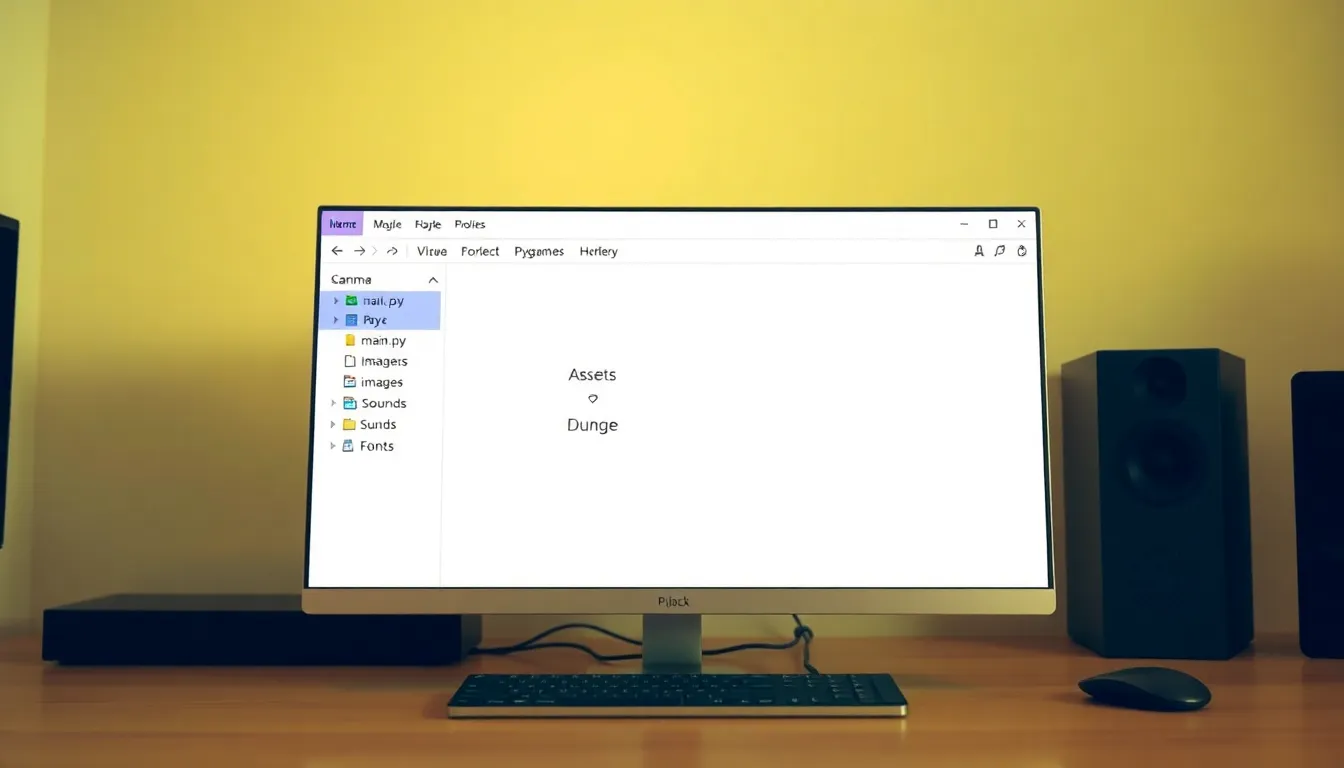
When preparing your Pygame project for distribution, the first step is organizing your project structure. A clean and logical layout not only helps others understand your code but also makes it easier to manage dependencies and resources. Start by creating a directory that will house all your project files. A common structure looks like this:
my_game/
│
├── main.py
├── README.md
├── assets/
│   ├── images/
│   ├── sounds/
│   └── fonts/
└── requirements.txt
The main.py file is your entry point. The assets folder should include all media files, while requirements.txt will list your project’s dependencies. Make sure to keep your assets organized within their respective folders to avoid clutter.
Next, it’s crucial to handle dependencies correctly. Pygame itself is a dependency, so it should be included in your requirements.txt file. You can install it using pip, and then save it to your requirements file with the following command:
Auto Amazon Links: Could not resolve the given unit type, . Please be sure to update the auto-insert definition if you have deleted the unit.
pip freeze > requirements.txt
Once you have your project structured and dependencies listed, consider creating a virtual environment. This isolates your project’s packages from the global Python installation, which can prevent version conflicts. You can set it up using:
python -m venv venv
source venv/bin/activate  # On Windows use: venvScriptsactivate
With the virtual environment activated, install Pygame and any other necessary packages. This will ensure that your project runs in a controlled environment, making distribution smoother for users who may not have the same setup.
It’s time to talk about testing your project before distribution. It is essential to run your game on different systems to catch any platform-specific issues. Consider using a test suite or continuous integration service to automate this process.
Finally, packaging your game for distribution can be handled with tools like PyInstaller or cx_Freeze. These tools bundle your Python application into standalone executables, which makes it easier for users to run your game without needing to install Python or Pygame themselves. Here’s how you can use PyInstaller:
pyinstaller --onefile main.py
This command creates a single executable file that contains your game and all its dependencies. It simplifies the installation process for end users, who can simply download and run the executable without additional steps.
Make sure to read through the documentation of these packaging tools to understand their full capabilities and options. You might want to customize the icons, window titles, and other parameters for a more polished user experience.
As you are preparing your game for distribution, don’t forget to include a README file that outlines how to install and run the game. Providing clear instructions can significantly enhance the user experience, ensuring that players can get straight into the action without unnecessary hurdles.
With everything set up, you’re ready to share your creation with the world. Just remember that the distribution process is often iterative; be prepared to make updates based on user feedback and bug reports. The more polished your project is, the better the reception it will receive.
Choosing the right packaging tools for Pygame
Choosing the right packaging tool for your Pygame project depends on several factors including target platform, ease of use, level of customization, and the complexity of your project’s dependencies.
PyInstaller is the most popular choice due to its simplicity and cross-platform support. It analyzes your script and collects all necessary dependencies, including DLLs and shared libraries, automatically. PyInstaller supports Windows, macOS, and Linux, which makes it a versatile option.
To create a bundled executable with PyInstaller while including non-Python assets like images and sounds, you need to specify a spec file or use the --add-data option. For example:
pyinstaller --onefile --add-data "assets/images;assets/images" --add-data "assets/sounds;assets/sounds" main.py
This command tells PyInstaller to include your assets folders. Note the separator is a semicolon on Windows and a colon on Unix-based systems:
Windows: "source_path;destination_path"
Linux/macOS: "source_path:destination_path"
Customizing your executable further is possible by editing the .spec file PyInstaller generates. You can tweak things like the console window presence, application icon, or additional data files. Here’s an excerpt on how to modify your spec file:
# -*- mode: python ; coding: utf-8 -*-

block_cipher = None

a = Analysis(['main.py'],
             pathex=['/path/to/my_game'],
             binaries=[],
             datas=[('assets/images/*', 'assets/images'),
                    ('assets/sounds/*', 'assets/sounds')],
             hiddenimports=[],
             hookspath=[],
             runtime_hooks=[],
             excludes=[],
             win_no_prefer_redirects=False,
             win_private_assemblies=False,
             cipher=block_cipher)

pyz = PYZ(a.pure, a.zipped_data,
          cipher=block_cipher)

exe = EXE(pyz,
          a.scripts,
          [],
          exclude_binaries=True,
          name='MyGame',
          debug=False,
          bootloader_ignore_signals=False,
          strip=False,
          upx=True,
          console=False,  # Set True if you want a console window
          icon='assets/icon.ico')

coll = COLLECT(exe,
               a.binaries,
               a.zipfiles,
               a.datas,
               strip=False,
               upx=True,
               upx_exclude=[],
               name='MyGame')
Another option is cx_Freeze, which offers fine-grained control of the build process and can produce more optimized executables on some platforms. However, it generally requires more manual setup, especially for including data files. A typical setup script looks like this:
from cx_Freeze import setup, Executable

build_exe_options = {
    "packages": ["pygame"],
    "include_files": ["assets/images/", "assets/sounds/"]
}

setup(
    name="MyGame",
    version="1.0",
    description="My Pygame project",
    options={"build_exe": build_exe_options},
    executables=[Executable("main.py", base=None, icon="assets/icon.ico")]
)
You would run the build process with:
python setup.py build
Both PyInstaller and cx_Freeze allow you to create executables for multiple platforms, but you generally need to create your builds on the platform you want to target for reliability.
For distributing on macOS, py2app can be used and is more attuned to the macOS app bundling requirements. It’s similar in concept but creates a .app bundle:
from setuptools import setup

APP = ['main.py']
OPTIONS = {
    'argv_emulation': True,
    'includes': ['pygame'],
    'iconfile': 'assets/icon.icns',
    'resources': ['assets/images', 'assets/sounds']
}

setup(
    app=APP,
    options={'py2app': OPTIONS},
    setup_requires=['py2app'],
)
The choice among these tools often boils down to your target audience and development environment. PyInstaller tends to require fewer configuration steps, making it ideal for most use cases, especially if you’re deploying on Windows.
Whichever tool you select, be sure to test your packaged application thoroughly across all intended platforms. Specifically for Pygame, issues with missing SDL or audio libraries can arise, so watch for errors relating to missing DLLs or frameworks and track them down by consulting the tool’s verbose output modes.