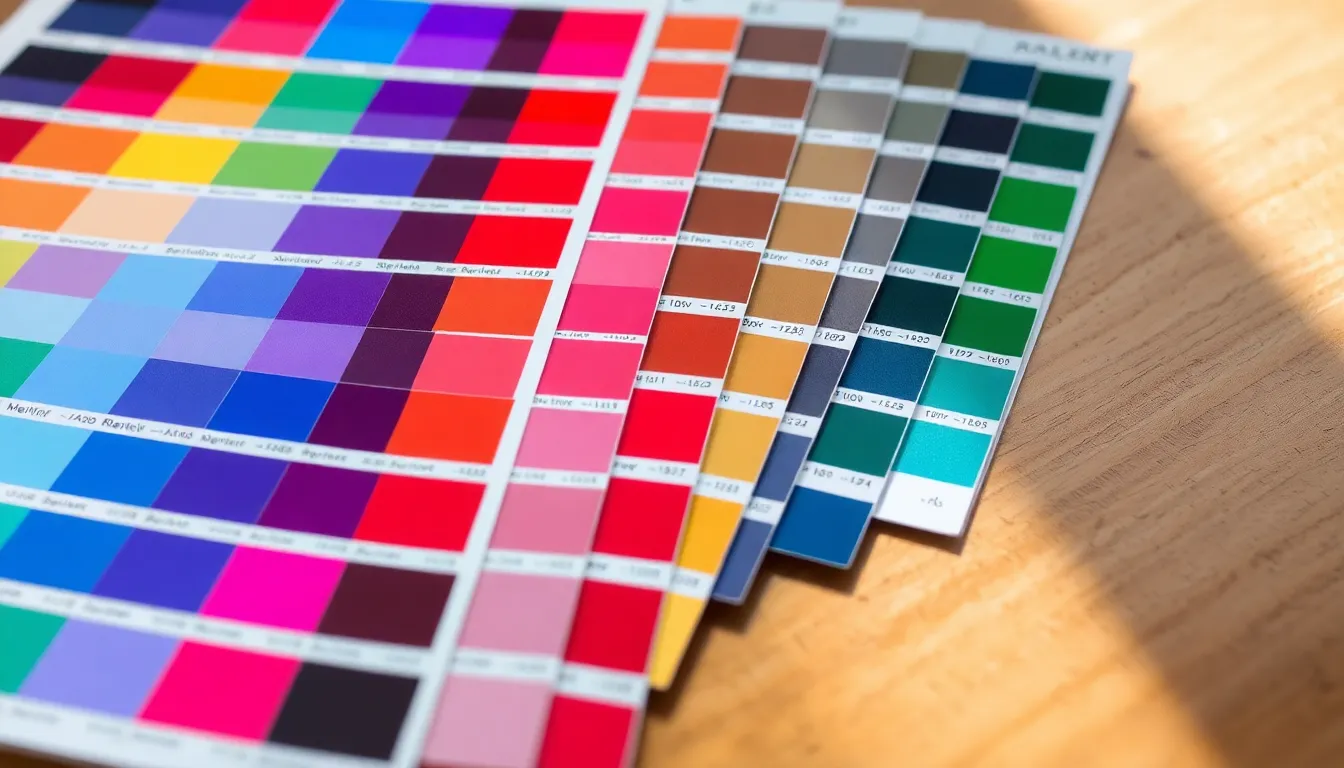
When working with images in Python, the Pillow library offers a robust set of tools for manipulating color modes and profiles. Understanding the nuances of these modes especially important for effective image processing. The most common color modes you’ll encounter are RGB, RGBA, L (grayscale), and CMYK. Each mode serves different purposes depending on the nature of the project.
The RGB color mode consists of three channels—red, green, and blue—each contributing to the final color displayed. In contrast, RGBA incorporates an alpha channel for transparency. That’s particularly useful when layering images. Grayscale (L) is simplified, representing intensity with a single channel, while CMYK is typically used in print media, consisting of cyan, magenta, yellow, and key (black) channels.
To open an image and check its mode, you can use the following code:
from PIL import Image

image = Image.open("example.jpg")
print("Image mode:", image.mode)
Once the mode is determined, you might need to convert it to another mode for processing. Pillow provides a simpler way to handle this with the convert() method. For instance, converting an RGB image to grayscale can be done as follows:
gray_image = image.convert("L")
gray_image.save("example_gray.jpg")
However, it’s important to be aware of the color profiles embedded in images, especially when converting between color modes. Profiles define how colors are represented, and without properly managing them, you may end up with unexpected results. You can check an image’s profile with:
print("Image info:", image.info)
Handling color profiles effectively is key when transforming images for different contexts. For instance, converting an RGB image to CMYK for printing requires careful consideration of the color space. Pillow allows you to manage this, but you should always inspect the original color profile to ensure accuracy. When dealing with images that have embedded profiles, you can handle them like this:
if 'icc_profile' in image.info:
    profile = image.info['icc_profile']
    print("Embedded ICC Profile found.")
Using this information, you can either preserve or modify the profile during your conversion processes, thereby minimizing color discrepancies. It’s also wise to familiarize yourself with the common pitfalls in color management, such as the differences in color representation across various devices.




JBL Tune Flex - True Wireless Noise Cancelling Earbuds (Black), Small
60% OffConverting between color spaces effectively
Directly converting between RGB and CMYK color spaces in Pillow can be a bit tricky because Pillow’s support for CMYK is limited and primarily focused on image modes rather than full color management. When you convert an RGB image to CMYK, for example, Pillow applies a basic and device-independent conversion that may not align perfectly with professional print specifications. Here is a simple example:
cmyk_image = image.convert("CMYK")
cmyk_image.save("example_cmyk.tif")
Keep in mind that this conversion does not apply any ICC profiles or compensations based on the source and target device color spaces. For production-quality color conversion that respects color profiles, you might want to integrate Pillow with external libraries like LittleCMS through lcms bindings or use tools such as ImageMagick.
When conversions need to preserve color fidelity, a common approach is to extract the raw pixel data, perform a color space conversion manually or via a dedicated library, then re-create the image in Pillow. For example, you can convert the image data to numpy arrays, transform the color channels as needed, then convert back:
import numpy as np

rgb_array = np.array(image.convert("RGB"))
# Example: custom simple RGB to grayscale conversion using luminosity formula
gray_array = np.dot(rgb_array[..., :3], [0.2989, 0.5870, 0.1140]).astype(np.uint8)
gray_image_custom = Image.fromarray(gray_array, mode='L')
gray_image_custom.save("example_gray_custom.jpg")
This approach gives you fine-grained control over the conversion algorithm, but at the cost of more complex code and potentially lower performance for large images.
Another subtle but useful conversion involves the alpha channel. Sometimes you want to premultiply the alpha channel before blending or compositing images. This means each color channel is scaled by the alpha transparency value.
rgba = image.convert("RGBA")
rgba_array = np.array(rgba, dtype=np.float32)
alpha_channel = rgba_array[..., 3:] / 255.0

# Premultiply RGB by alpha
rgba_array[..., :3] *= alpha_channel

# Convert back to uint8 and image
premultiplied = np.clip(rgba_array, 0, 255).astype(np.uint8)
premultiplied_image = Image.fromarray(premultiplied, mode="RGBA")
premultiplied_image.save("example_premultiplied.png")
This matters in workflows where the blending behavior or compositing pipelines expect premultiplied alpha for correct results. Not doing so can lead to halos or unintended transparency effects.
Converting between palettes and full RGB images also has its nuances. When converting a palettized image (mode “P”) to RGB, Pillow handles the unpacking of the palette. However, converting back to “P” can cause loss of color accuracy if the palette does not contain representative colors:
paletted_image = image.convert("P", palette=Image.ADAPTIVE, colors=256)
paletted_image.save("example_paletted.png")

# Convert back to RGB for editing
rgb_converted_back = paletted_image.convert("RGB")
The choice of palette and number of colors affects the final appearance significantly. Using Image.ADAPTIVE generates a palette optimized for the specific image content but might increase processing time.
In summary, effective color space conversion requires more than just calling convert(). You have to consider the embedded profiles, understand the properties of the modes involved, and sometimes intervene by working at the pixel level to achieve precise results. This level of control is mandatory when your pipeline depends on exact color fidelity, such as in printing, scientific imaging, or compositing pipelines where transparency is prevalent.
When working with external color management systems (CMS), it’s common to extract the ICC profile from an image and use it alongside color transformation libraries. Pillow’s ImageCms module is a useful built-in tool for this, which lets you apply transforms that respect ICC profiles:
from PIL import ImageCms

if 'icc_profile' in image.info:
    input_profile = ImageCms.ImageCmsProfile(io.BytesIO(image.info.get('icc_profile')))
else:
    input_profile = ImageCms.createProfile("sRGB")

output_profile = ImageCms.createProfile("CMYK")
transform = ImageCms.buildTransform(input_profile, output_profile, "RGB", "CMYK")

cmyk_image_cms = ImageCms.applyTransform(image.convert("RGB"), transform)
cmyk_image_cms.save("example_cmyk_cms.tif")
This method manages the color conversion in a way that honors the characteristics of the source and target devices, significantly reducing the chance of color shift or distortion caused by naive conversion. However, it requires the ICC profiles to be present or explicitly specified, which is not always the case.
Effective color conversion is often an iterative process: you convert, evaluate visually (or programmatically), adjust profiles or parameters, and convert again. Automating this with tests that verify color accuracy can save time, especially in batch processing large image sets.
You should also be cautious about image metadata and how it’s preserved or stripped during conversions. Sometimes essential information related to color or gamma corrections resides in EXIF or XMP tags, which Pillow does not manage by default. This can be important when images are consumed by other systems expecting this metadata.
Some of these conversions can also impact image file size and compression behavior. For instance, saving an image in CMYK TIFF format may result in a much larger file compared to a compressed JPEG in RGB. Choosing the right format post-conversion depends on your ultimate usage scenario—web, print, or archival.
Finally, multi-frame images like GIFs or animated PNGs add complexity because each frame’s color needs to be managed consistently. Pillow provides seek() and tell() methods to iterate frames—but you should convert each frame individually and reconstruct the animation carefully to avoid artifacts or mode mismatches.
For example, converting a GIF with a palette to RGB frames for processing:
gif = Image.open("animated.gif")
frames = []

try:
    while True:
        frame = gif.convert("RGBA")  # Convert palette frames to RGBA
        frames.append(frame.copy())
        gif.seek(gif.tell() + 1)
except EOFError:
    pass

# Process frames as needed, then save back (requires additional libraries for GIF)
Working through these details, you gain the power to convert and manipulate images confidently across different color modes, resulting in more reliable, visually accurate applications.
Handling common pitfalls in color management
When dealing with color management in Pillow, it’s easy to overlook the impact of color space conversions on image quality. One common pitfall is failing to account for the differences in how colors are represented across devices. For instance, what looks vibrant on a screen may appear muted in print due to the inherent differences between RGB and CMYK color spaces. This necessitates careful consideration when preparing images for output.
Additionally, when converting images with transparency, you might encounter issues with blending and compositing. If you forget to premultiply the alpha channel before blending, you can end up with undesirable artifacts in the final image. Here’s how to properly handle the premultiplication:
from PIL import Image
import numpy as np

image = Image.open("example.png").convert("RGBA")
rgba_array = np.array(image, dtype=np.float32)
alpha_channel = rgba_array[..., 3:] / 255.0

# Premultiply RGB by alpha
rgba_array[..., :3] *= alpha_channel

# Convert back to uint8 and create the image
premultiplied_image = Image.fromarray(np.clip(rgba_array, 0, 255).astype(np.uint8), mode="RGBA")
premultiplied_image.save("example_premultiplied_corrected.png")
Another common issue arises from converting between paletted images and full RGB images. When converting from “P” to “RGB,” Pillow manages the palette conversion automatically. However, reverting back to “P” can lead to a loss of color fidelity if the palette does not adequately represent the image’s colors. Here’s a practical example of how to manage this:
palette_image = image.convert("P", palette=Image.ADAPTIVE, colors=256)
palette_image.save("example_palette.png")

# Converting back to RGB
rgb_image = palette_image.convert("RGB")
It’s essential to choose the right palette and number of colors, as these choices significantly affect the image’s final appearance. Using Image.ADAPTIVE helps optimize the palette for the specific content, but keep in mind that this might increase processing time, especially for larger images.
Moreover, a frequent oversight is neglecting the metadata associated with images during conversions. Essential information, such as color profiles and gamma corrections, may reside in EXIF or XMP tags. Pillow does not automatically preserve this metadata, which can be problematic when images are processed by different systems that rely on this information. Here’s how you can manage this:
from PIL import Image

image = Image.open("example_with_metadata.jpg")
metadata = image.info

# Save the image while preserving metadata
image.save("output_image_with_metadata.jpg", exif=metadata.get('exif'))
In addition to metadata, consider how conversions impact file size and compression. For instance, saving an image in CMYK format typically results in larger file sizes compared to saving in RGB format. When deciding on the output format, factor in your use case—whether it’s for web, print, or archival purposes.
Lastly, when dealing with multi-frame images such as GIFs or animated PNGs, you must ensure that each frame’s color is managed consistently. Pillow provides methods like seek() and tell() for iterating through frames, but each frame should be converted individually to avoid artifacts. Here’s an example of extracting and processing frames from a GIF:
gif = Image.open("animated.gif")
frames = []

try:
    while True:
        frame = gif.convert("RGBA")  # Convert each frame to RGBA
        frames.append(frame.copy())
        gif.seek(gif.tell() + 1)
except EOFError:
    pass

# Process frames as needed, then save back using an external library
Understanding and managing these pitfalls very important for achieving high-quality results in your image processing tasks. By being mindful of color spaces, transparency handling, metadata preservation, and frame management, you can enhance the reliability and visual accuracy of your applications.